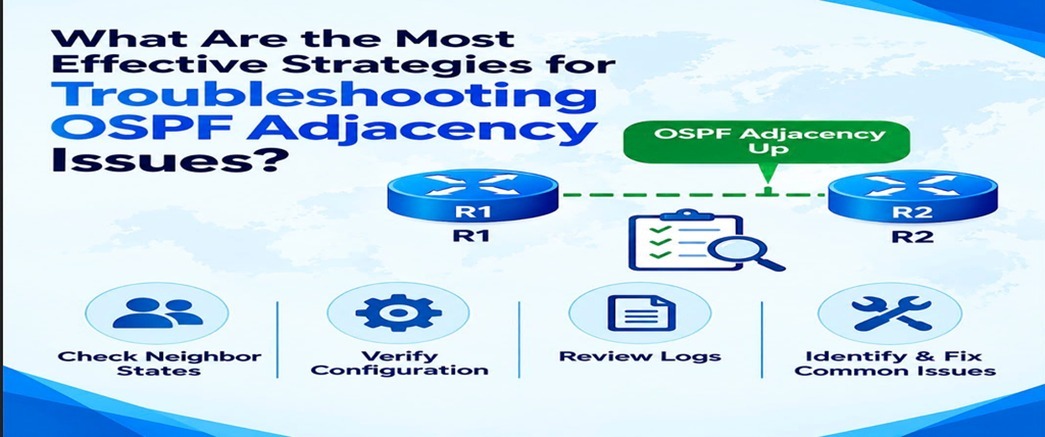
What Are the Most Effective Strategies for Troubleshooting OSPF Adjacency Issues?
Introduction
Open Shortest Path First (OSPF) is a link-state routing protocol widely used in enterprise networks. OSPF routers exchange link-state information and form neighbor adjacencies so that they can synchronize their link-state databases and calculate routes.
When an OSPF adjacency fails to form or remains stuck in an intermediate state, routes may not be exchanged correctly. Troubleshooting therefore starts by identifying the exact OSPF neighbor state and then checking the configuration, connectivity, timers, network type, and other parameters that must match.
What Is an OSPF Adjacency?
An OSPF adjacency is a relationship between OSPF routers that allows them to exchange routing information. On broadcast and other multi-access networks, routers may first discover one another as neighbors and then form full adjacencies according to the OSPF network type and router roles.
A healthy adjacency allows routers to synchronize their link-state databases and maintain a consistent view of the OSPF topology.
Understand the OSPF Neighbor States
OSPF uses several neighbor states during adjacency formation. The state shown by the router often provides the first clue about the problem.
• Down – No OSPF Hello has been received from the neighbor.
• Init – A Hello has been received, but the local router has not yet seen its own Router ID listed in the neighbor’s Hello.
• 2-Way – Bidirectional communication has been established. On some network types, routers may remain in this state without becoming fully adjacent.
• ExStart – Routers begin negotiating the database exchange process.
• Exchange – Database Description packets are exchanged.
• Loading – Routers request missing link-state information.
• Full – The adjacency is fully established and the link-state databases are synchronized.
- Check Neighbor Status First
The first troubleshooting step is to inspect the OSPF neighbor table. On Cisco IOS, the command show ip ospf neighbor provides the neighbor state, Router ID, address, interface, and other useful information.
The neighbor state helps narrow the investigation. For example, a neighbor stuck in Init suggests a bidirectional communication problem, while a neighbor stuck in ExStart or Exchange often points toward MTU or database-exchange issues. - Verify Basic Layer 1 and Layer 2 Connectivity
Before troubleshooting OSPF itself, verify that the underlying interface is operational. Check whether the interface is up, whether the correct VLAN or Layer 2 segment is being used, and whether the two routers can communicate at the IP level.
• Verify the interface is up/up.
• Check the correct IP address and subnet mask.
• Confirm the routers are in the same Layer 2 segment when required.
• Check for VLAN, trunk, or switch-port problems.
• Use ping to verify basic IP connectivity. - Verify OSPF Configuration
Compare the OSPF configuration on both routers. The interfaces must participate in the same OSPF process and appropriate area, and the intended interfaces must have OSPF enabled.
• Confirm OSPF is enabled on the correct interface.
• Verify the OSPF area assignment.
• Check the Router ID.
• Verify the expected network is being advertised.
• Check passive-interface settings.
• Confirm the correct local interface is being used. - Check the OSPF Hello and Dead Timers
OSPF uses Hello packets to discover and maintain neighbors. The Hello and Dead intervals generally need to match between OSPF neighbors on the same link.
A mismatch can prevent adjacency formation. Check the interface-level OSPF timers on both routers and confirm that the values are compatible with the network design. - Check the OSPF Network Type
OSPF network type influences neighbor discovery and adjacency behavior. Common network types include broadcast, point-to-point, non-broadcast, and point-to-multipoint.
If two routers have incompatible or unexpected network-type settings, adjacency formation can fail or behave differently than expected. Verify the configured network type on both sides. - Check Area and Area Type
OSPF neighbors that are expected to form an adjacency must be configured consistently for the relevant area. In addition to the area number, some OSPF area types can introduce additional requirements.
• Verify both interfaces are in the intended OSPF area.
• Check whether the area is configured as a standard area, stub area, or another supported area type.
• Verify that routers have compatible area-related configuration. - Verify MTU Settings
Maximum Transmission Unit (MTU) mismatches are a common cause of OSPF neighbors becoming stuck during database exchange, particularly around the ExStart and Exchange states.
Compare the interface MTU values on both routers. If the routers cannot successfully exchange the required database packets because of an MTU mismatch, the adjacency may fail to reach Full. - Check Authentication
If OSPF authentication is configured, both neighbors must use compatible authentication settings and credentials.
• Confirm authentication is enabled where expected.
• Verify the authentication type.
• Check the authentication key or credentials.
• Confirm the configuration is applied to the correct interface.
An authentication mismatch can prevent valid OSPF Hellos from being accepted and can therefore prevent adjacency formation. - Check Access Control Lists and Filtering
OSPF relies on IP protocol 89 rather than TCP or UDP ports. ACLs, firewalls, security policies, or other filtering mechanisms that block OSPF traffic can prevent neighbors from communicating.
Review relevant interface ACLs and security controls and confirm that OSPF traffic is permitted between the intended neighbors. - Verify Duplicate Router IDs
Every OSPF router in an OSPF routing domain should have a unique Router ID. Duplicate Router IDs can create unexpected behavior and prevent the OSPF topology from operating correctly.
Check the Router ID of each participating router and ensure that there are no unintended duplicates. - Check Duplicate IP Addresses and Addressing Errors
Incorrect IP addressing can cause OSPF problems even when the OSPF configuration itself appears correct.
• Check for duplicate IP addresses.
• Verify subnet masks.
• Confirm the neighbor address is reachable.
• Check whether an interface has the expected IP address.
• Verify there are no overlapping or incorrectly configured subnets. - Review OSPF Logs and Debug Information
When basic checks do not identify the problem, logs and carefully controlled debugging can provide additional information. Commands such as show logging and platform-appropriate OSPF debugging can help reveal authentication errors, neighbor resets, packet problems, or state transitions.
Debugging should be used carefully on production systems because it can consume CPU and generate large amounts of output. Where possible, collect information during a controlled troubleshooting window. - Compare Both Routers Side by Side
Many OSPF adjacency problems are caused by a mismatch between the two ends of a link. A side-by-side comparison is therefore an effective troubleshooting method.
• Interface IP and subnet mask
• OSPF area
• Hello and Dead timers
• Network type
• MTU
• Authentication
• Passive-interface configuration
• Router ID
• ACL or security filtering
Common OSPF Adjacency Problems by Neighbor State
• Down – Check interface status, IP connectivity, OSPF enablement, and whether Hello packets are being received.
• Init – Check whether Hellos are reaching both routers and whether bidirectional communication is working.
• 2-Way – Determine whether the network type requires a Full adjacency. On broadcast networks, 2-Way can be normal between a DROTHER and another DROTHER.
• ExStart/Exchange – Check MTU, network type, duplicate Router IDs, and database exchange behavior.
• Loading – Check whether Link State Requests and Link State Updates are being exchanged successfully.
• Full – The adjacency is established; if routes are still missing, investigate LSAs, area configuration, route filtering, and route calculation.
Useful Cisco IOS Commands
The following commands are commonly useful when troubleshooting OSPF on Cisco IOS/IOS XE, although exact command availability can vary by platform and software version.
• show ip ospf neighbor – Displays OSPF neighbor relationships and states.
• show ip ospf interface – Displays OSPF parameters for interfaces.
• show ip ospf – Displays OSPF process information.
• show ip route ospf – Displays routes learned through OSPF.
• show ip protocols – Displays routing protocol configuration information.
• show logging – Displays system log messages.
• ping – Tests IP connectivity.
• traceroute – Helps investigate the forwarding path.
A Practical Troubleshooting Workflow
- Check the OSPF neighbor state.
- Verify the physical and Layer 2 interface status.
- Test basic IP connectivity.
- Compare IP addressing and subnet masks.
- Compare OSPF area and interface configuration.
- Check Hello and Dead timers.
- Verify OSPF network type.
- Compare MTU values.
- Check authentication.
- Review ACLs and security filtering.
- Check Router IDs and addressing for duplicates.
- Review logs and use controlled debugging if necessary.
- After fixing the issue, verify that the neighbor reaches Full where a Full adjacency is expected.
- Verify that the expected OSPF routes appear in the routing table.
Conclusion
Troubleshooting OSPF adjacency issues becomes much easier when the investigation follows a structured process. The OSPF neighbor state provides an important starting point, while configuration comparisons can identify mismatches in areas, timers, network types, MTU, authentication, and other parameters.
Network engineers should always verify basic connectivity first and then move toward OSPF-specific checks. By combining neighbor-state analysis, configuration verification, interface testing, logs, and appropriate Cisco IOS commands, OSPF adjacency problems can be isolated systematically and resolved with less guesswork.

You may also like
How Do DHCP Snooping and Dynamic ARP Inspection Protect Layer 2 Networks?